
How to Prepare QuickBooks Journal Entries from a CSV
Map POS, vendor, and accounting exports to QuickBooks Online journal-entry columns, check debit/credit balance, and prepare a clean import CSV.
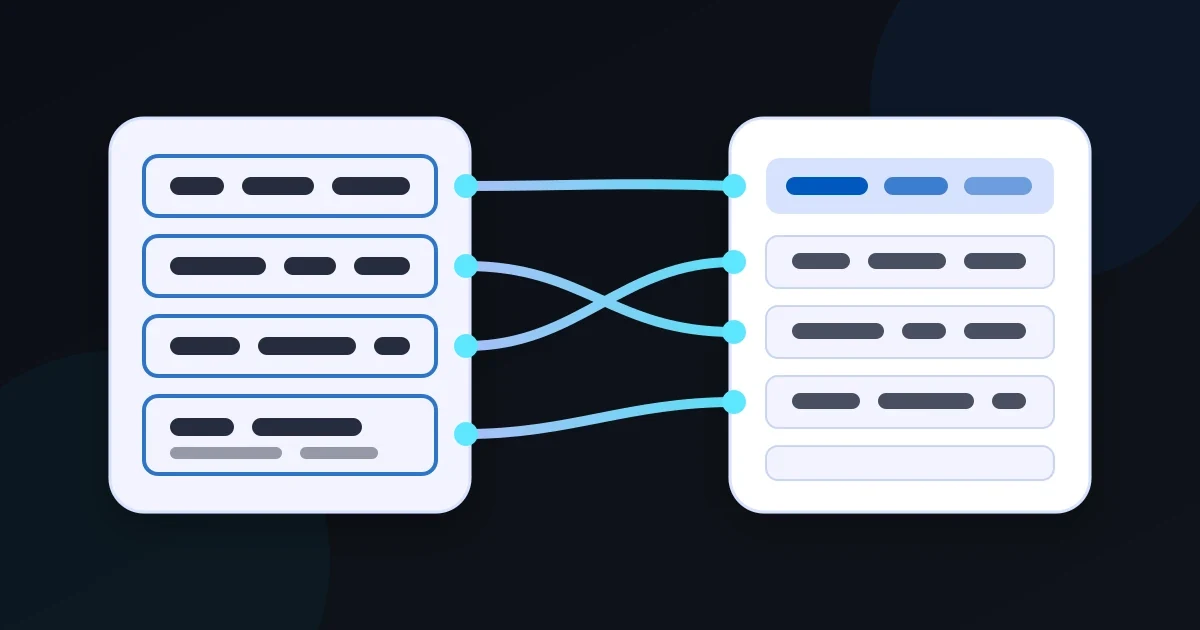
Recurring POS settlements, payment processor fees, vendor summaries, and month-end adjustments often arrive in a CSV that is structurally close to a journal entry but uses different headers. QuickBooks Online journal-entry import expects six mapped fields: Journal No., Journal Date, Account Name, Description, Debits, and Credits.
The QuickBooks Journal Entry CSV Preparer maps those fields, validates the accounting shape locally in your browser, and only enables the prepared download after every journal number balances.
Start with the six QuickBooks fields
pos-export.csv
The source headers do not need to match QuickBooks. Map them to the six destination fields, then run the preflight.
- 01
Choose the source CSV
Use the export you receive repeatedly from your POS, vendor, bookkeeper, or accounting system.
- 02
Map all six fields
Match journal number, date, account, description, debit, and credit to the corresponding source columns.
- 03
Run the preflight
The browser checks required cells, date shape, account hierarchy syntax, numeric amounts, and debit/credit usage.
- 04
Fix unbalanced journals
Rows sharing a journal number are totaled together. Debit and credit totals must match before export.
- 05
Download the prepared CSV
The output is reordered and renamed to the six QuickBooks journal-entry headers.
Keep each journal number consistent across all lines that belong to one accounting entry. The preflight balances each journal number independently rather than only checking the grand total of the file.
Debit and credit rules to check
Each journal line should contain an amount on one side. A line with both a debit and a credit is ambiguous; a line with neither side populated does not contribute an accounting amount. Negative values are also flagged so the source can be corrected explicitly.
For each journal number, the sum of Debits must equal the sum of Credits. This catches a common import problem before QuickBooks sees the file.
Dates and account names
The preparer accepts ISO dates such as 2026-09-15 and valid slash/dash dates with a four-digit year. QuickBooks asks you to select the source date format during its import flow, so keep one date convention consistent across the file.
If a journal line uses a subaccount, write the full hierarchy in Account Name, for example Expenses: Merchant Fees. QuickBooks requires the parent account to be present before the subaccount name.
Keep accounting data on your device
This tool uses Nablyx's browser processing path. The CSV is inspected, validated, and transformed locally; the file contents are not uploaded to Nablyx. The current file limit shown by the tool is enforced before processing begins.
quickbooks-journal-entry-csv-preparerSee the transformation
Awkward source headers become import-ready columns.
Rename the columns you need while keeping every value under the correct header.
cust_idcustomer_idgiven_namefirst_namemailemail✓ Values stay with the right column
Need to do this now?
Prepare a QuickBooks journal CSVRelated tools
Open the tool this guide is about, or explore a related one.
- CSV column mapper and renamerRename, reorder, and remove CSV columns before importing data into a CRM, store, database, or accounting system — without uploading your file.
- QuickBooks Online Invoice CSV PreparerMap invoice columns, validate locally in your browser, and automatically split larger valid sources into QuickBooks-ready import batches.
- Clean and fix CSV files — no uploadRepair common CSV problems including wrong delimiters, uneven rows, empty lines, whitespace, BOM markers, and duplicate headers.