
How to Match Salesforce Leads Against Existing Contacts
Compare a Salesforce Lead CSV with an existing Contact export by Email or another exact key, review collisions, and export only new Leads.
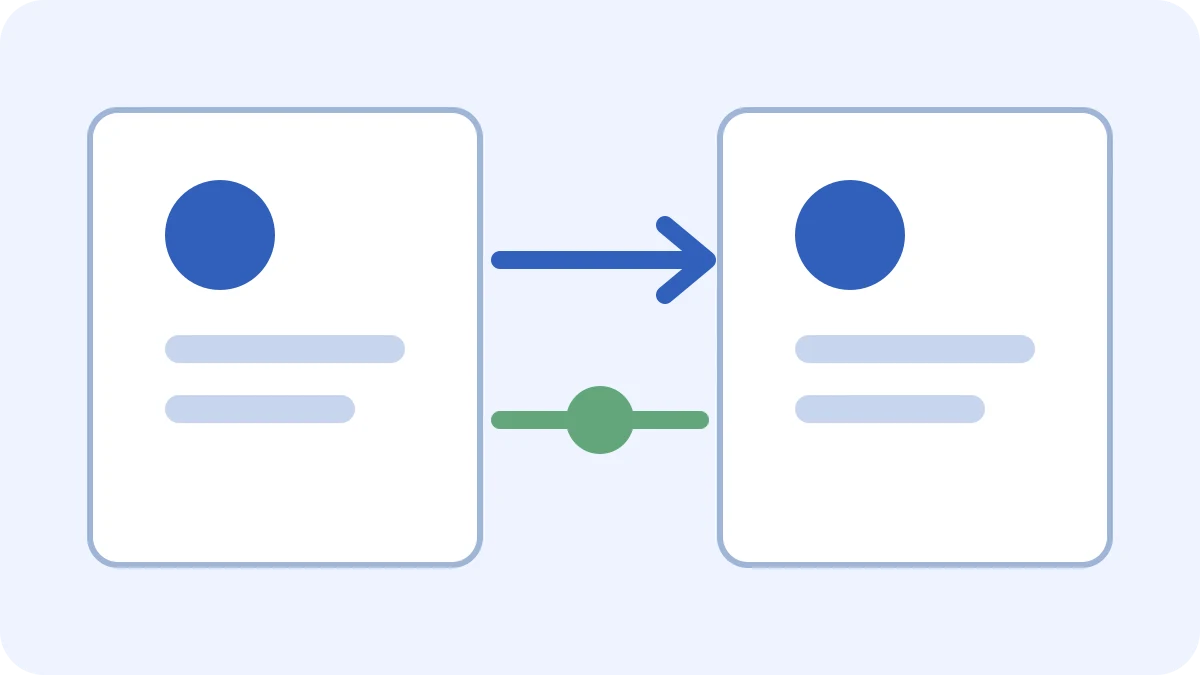
An incoming Lead list can contain people who already exist as Contacts. The safest pre-import check is to compare both exports on a key that means the same thing in each file. Email is a practical default when it is populated consistently, but a stable external ID can be better when both exports contain it.
Prepare the two files
Export existing Contacts with Email and any other identifier you may use. Keep the incoming Lead file in its original Salesforce import shape. The preflight reads both files locally in the browser.
- Load the incoming Leads CSV and the current Contacts export.
- Confirm
Email, or choose another column present in both files. - Run the exact-key comparison.
- Review every Lead whose key already exists in Contacts.
- Download the new-only Lead CSV and import that reviewed file.
A collision is evidence that the key already exists in the supplied Contact export. It is not proof that two records are the same person, so review the business context before updating, merging, converting, or skipping anything.
What the output means
Existing Contact rows are excluded from the new-only download and shown in the review table. New Lead rows have no matching key in the Contact export and remain in the downloadable CSV with the Lead columns unchanged.
Re-export Contacts shortly before a recurring import. A stale Contact export can miss records created since the last check.
For structural issues, run Validate CSV before the Salesforce import.
Check Leads against ContactsSee the transformation
A useful diff separates every kind of change.
See changed, added, and removed rows separately so you know exactly what needs attention.
Need to do this now?
Check Leads against ContactsRelated tools
Open the tool this guide is about, or explore a related one.
- Compare CSV files online freeCompare two CSV files and review added, removed, and changed rows directly in your browser.
- Validate CSV files online freeScan a CSV once for structural, encoding, header, delimiter, and whitespace problems without changing the file.
- Salesforce Contact-to-Account Import JoinerMatch Salesforce Contacts to Accounts, append AccountId only for unique matches, and review unmatched or ambiguous rows before import.