
Import Shopify Products from CSV After Field Mapping
Use a mapped WooCommerce product CSV as a reviewed starting point for Shopify product import.
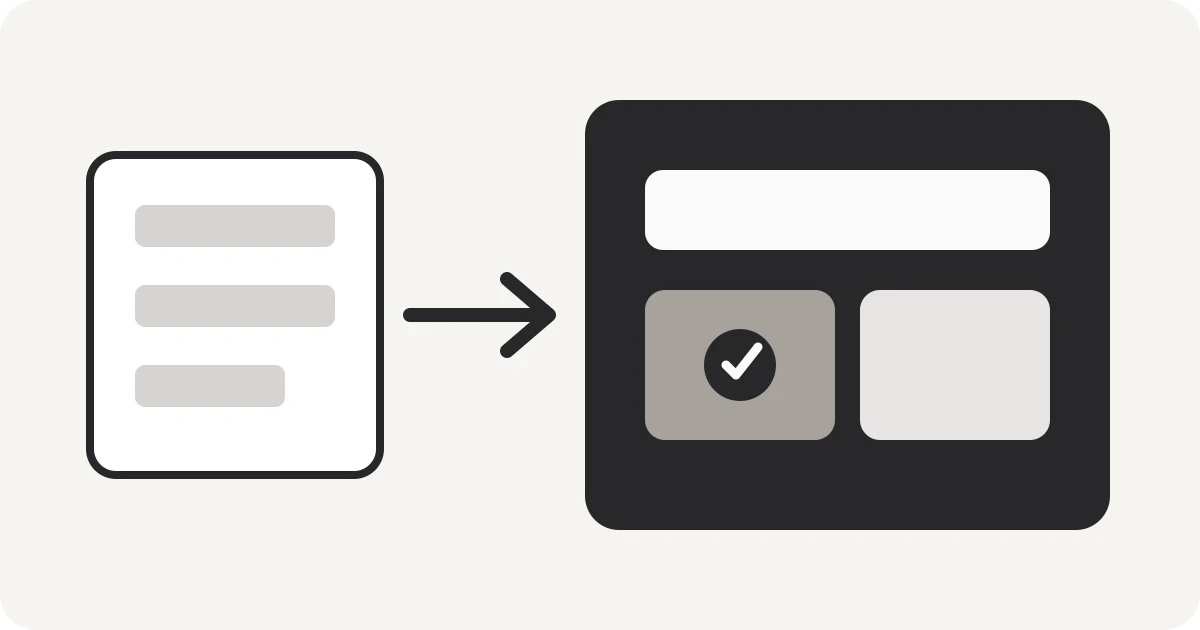
When a WooCommerce export is rejected by Shopify, the useful first step is to separate schema problems from data problems. Map the headers, review Shopify-only fields, then run the destination import.
Map and download first
Use the storefront mapper to rename safe equivalents and reorder the columns you intend to keep. The output remains a normal CSV that you can inspect before it reaches Shopify.
Review variants carefully
SKU, product type, option columns, pricing, images, inventory, and handles can change how Shopify groups rows into products and variants. Header mapping alone cannot infer those relationships for every catalog.
Import with Shopify
After reviewing the file against Shopify’s current documentation, upload it through Shopify’s product CSV importer and resolve any destination-side validation messages there.
Nablyx keeps the preparation step browser-local up to 200 MB.
Map CSV before Shopify importSee the transformation
Awkward source headers become import-ready columns.
Rename the columns you need while keeping every value under the correct header.
cust_idcustomer_idgiven_namefirst_namemailemail✓ Values stay with the right column
Need to do this now?
Map CSV before Shopify importRelated tools
Open the tool this guide is about, or explore a related one.
- WooCommerce to Shopify CSV Migration MapperMap WooCommerce product-export columns to Shopify-oriented product CSV fields locally in your browser.
- Validate CSV files online freeScan a CSV once for structural, encoding, header, delimiter, and whitespace problems without changing the file.
- Clean and fix CSV files — no uploadRepair common CSV problems including wrong delimiters, uneven rows, empty lines, whitespace, BOM markers, and duplicate headers.