
How to Map a WooCommerce CSV to Shopify
Map WooCommerce product-export columns to Shopify product CSV fields without rebuilding the file by hand.
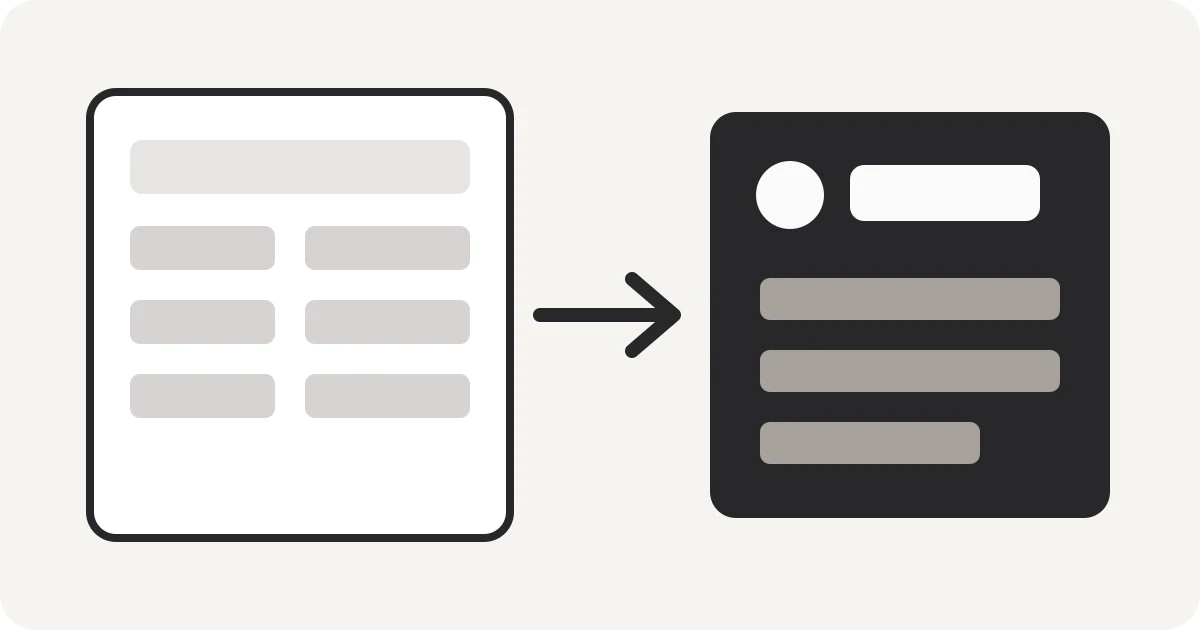
A WooCommerce export can be valid CSV and still fail as a Shopify import because the two storefronts use different product schemas. Treat the move as a field-mapping job before you upload anything.
Start with safe equivalents
Common direct mappings include Name → Title, Description → Body (HTML), Categories → Tags, SKU → Variant SKU, Published → Published, Type → Type, and regular_price → Variant Price.
Do not invent Shopify-only values
Fields such as Handle, Vendor, option names and values, and Variant Grams can require store-specific decisions or value generation. A column mapper should leave those decisions visible instead of filling them with guesses.
Review the destination template
After mapping, compare the downloaded file with Shopify’s current product CSV documentation, especially when variants, images, inventory, or option columns are involved.
Nablyx performs the mapping locally in your browser up to 200 MB.
Map WooCommerce CSV to ShopifySee the transformation
Awkward source headers become import-ready columns.
Rename the columns you need while keeping every value under the correct header.
cust_idcustomer_idgiven_namefirst_namemailemail✓ Values stay with the right column
Need to do this now?
Map WooCommerce CSV to ShopifyRelated tools
Open the tool this guide is about, or explore a related one.
- CSV column mapper and renamerRename, reorder, and remove CSV columns before importing data into a CRM, store, database, or accounting system — without uploading your file.
- WooCommerce Product CSV Import MapperMap supplier or legacy product columns to WooCommerce native import fields locally in your browser before import.
- Validate CSV files online freeScan a CSV once for structural, encoding, header, delimiter, and whitespace problems without changing the file.