
How to Remove Hidden Data from a PDF Before Sharing It
Clean hidden document details, attachments, comments, and form fields from a PDF before sharing it. The file stays on your device, with a 256 MB limit.
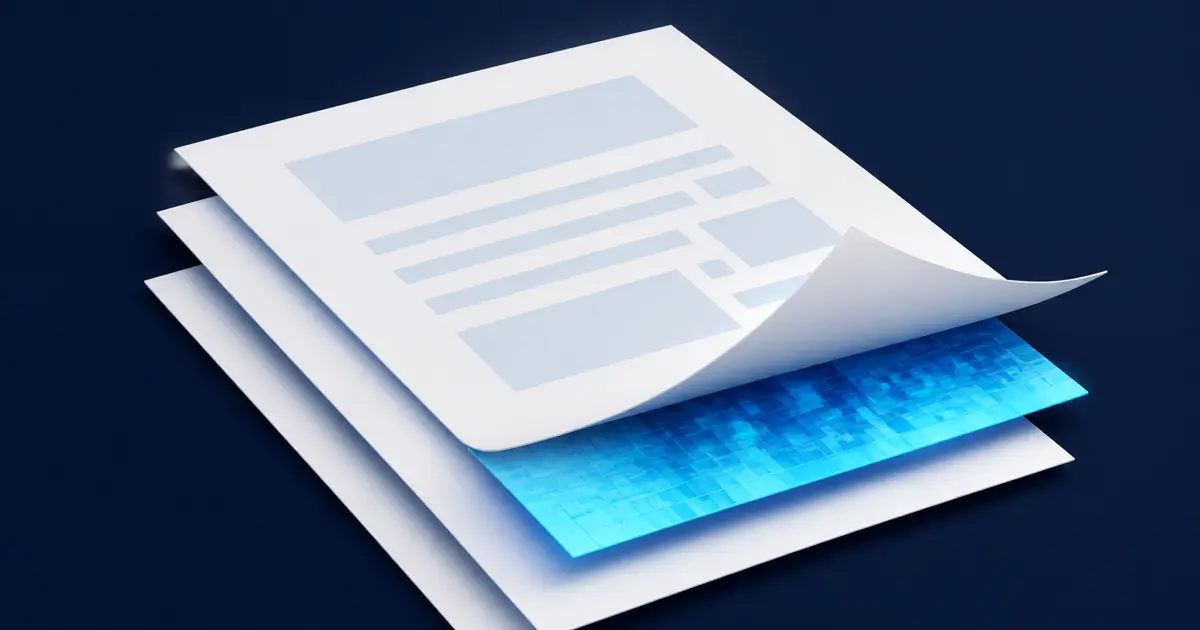
To remove hidden data before sharing a PDF, create a cleaned copy with document details, attachments, comments, and form data removed, then open the result and verify that the pages still look right. If visible text or images also need to be removed, add redaction areas for them before creating the final copy.
Use the PDF redaction tool for both hidden-data cleanup and visible redaction.
What hidden data can travel with a PDF?
A PDF may include:
- document details such as title, author, subject, keywords, and saved dates,
- files attached inside the PDF,
- comments and review notes,
- links and filled form fields.
These items may not appear in the normal page view. A recipient can still find them in the PDF's information, comments, forms, or attachments.
When is this useful?
Cleaning hidden data is useful before you send a PDF outside your home, school, or workplace.
For example, you may want to remove an author's name from a draft, delete review comments from a contract, or make sure an attached spreadsheet is not sent by mistake.
It is also useful when you want to share a clean copy while keeping the original for your own records.
How to remove hidden data from a PDF
- 01
Add your PDF
Choose the PDF from your device. Check the tool page for the current file-size limit.
- 02
Leave visible areas alone if you only want hidden-data cleanup
You do not need to draw redaction boxes unless something visible on the page also needs to be removed.
- 03
Keep the hidden-data options on
Leave the options for document details, attachments, comments, and form fields enabled unless you have a reason to keep one of them.
- 04
Clean the PDF
Run the tool and let it create a new cleaned copy.
- 05
Check the result before sharing
Open the downloaded PDF and confirm that the pages still look right and that the information you wanted removed is gone.
What happens to your file?
Your PDF stays on your device while the tool works. It is not uploaded to our servers.
The tool creates a new cleaned PDF. Your original file is not replaced, so you can keep it if you still need the full version.
If you do not add visible redaction areas, the tool leaves the normal page content alone and removes the selected hidden information around it.
Practical limits
The PDF redaction tool accepts one PDF up to 256 MB. The cap follows the same registry method: the displayed limit comes from the shipped tool registry and is backed by first-party browser measurement. The first-party measurement evidence is recorded in docs/tool-audit/batch-a.md.
Password-protected PDFs are not accepted. Open the file with the password and save an unlocked copy first.
A cleaned copy may not keep every interactive feature exactly as it was. Digital signatures, bookmarks, or form behaviour can be affected, so check those before relying on the final file.
This tool also cannot remove information from older copies that already exist in email, cloud storage, backups, or someone else's device. It only cleans the PDF you give it now.
Visible private information needs a different action. If a name, account number, or image can be seen on the page, follow the secure PDF redaction guide before creating the final copy.
Before you share the cleaned PDF
Open the downloaded file and check three things:
- the visible pages still look correct,
- comments, attachments, and document details you wanted removed are gone,
- any signature, bookmark, or form feature you still need works as expected.
For sensitive documents, keep the original in a safe place until you have checked the cleaned copy.
Clean hidden PDF dataSee the transformation
Hidden PDF data is removed, and marked pages become final pixels.
Remove hidden document details and permanently cover the areas you marked.
Need to do this now?
Clean hidden PDF dataRelated tools
Open the tool this guide is about, or explore a related one.
- Make CSV safe for Excel — free, no uploadNeutralize spreadsheet formulas, preserve identifiers and date-like text, and export CSV or explicitly typed XLSX without uploading your file.
- Clean and fix CSV files — no uploadRepair common CSV problems including wrong delimiters, uneven rows, empty lines, whitespace, BOM markers, and duplicate headers.
- Fix CSV encoding online — free, no uploadDetect CSV encoding, delimiter, and quoting problems, then download a normalized UTF-8 file without uploading it.