
How to Redact a PDF Without Leaking Hidden Data
Remove sensitive content from a PDF before sharing it. Mark the areas to redact, clear hidden document data, and create the cleaned PDF on your device.
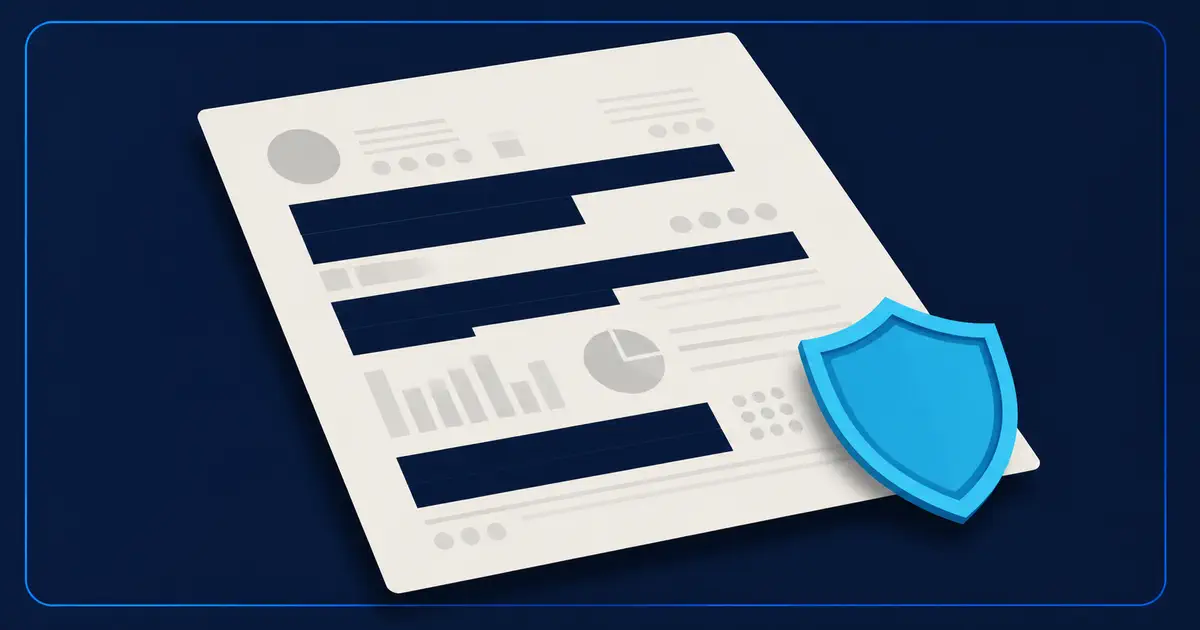
Redaction is used when a PDF contains something that must not be shared: a name, account number, address, signature, case detail, or other private information.
The important point is that hiding text and removing text are not the same thing. A black box can make words invisible while the words are still inside the PDF. Nablyx removes the hidden text from each area you mark; it does not just cover the text with a black shape.
The PDF is processed in your browser and is not uploaded. You can process one PDF up to 256 MB. That limit is measured rather than guessed: a scanned-content test at 256 MiB passed three times, while 320 MiB was unstable and 384 MiB failed.
When PDF redaction is useful
Use redaction before sending a document outside your team, publishing a record, sharing a legal or financial file, or giving someone only the parts of a document they are allowed to see.
It is also useful when a PDF may contain hidden information such as document details, attachments, comments, or form fields that should not travel with the file.
Why a black box is not enough
Some PDF editors let you draw a black rectangle over text. That can look correct on screen but still leave the original text underneath. A recipient may be able to select it, copy it, search for it, or extract it with another tool.
Nablyx handles marked pages differently. The cleaned copy does not carry the original text from the covered area into the output. The black area is part of the new page, not a loose shape sitting over live text.
In plain terms: the hidden text is removed from the file, not just covered up.
How to redact a PDF
- 01
Add the PDF
Choose one PDF within the current file-size limit shown on the tool page. Password-protected files need to be unlocked and saved as an unprotected copy first.
- 02
Mark every sensitive area
Draw a redaction box over each name, number, image, signature, or other detail that must be removed.
- 03
Check every page
Move through the full document so you do not miss a repeated name, footer, note, or scanned detail.
- 04
Leave hidden-data cleanup on unless you need otherwise
The default cleanup removes document details, embedded attachments, comments, and form fields from the cleaned copy.
- 05
Adjust page quality only if needed
Higher page quality can keep fine details clearer, but it can also make the output larger and take longer to create.
- 06
Create and verify the cleaned PDF
Download the result, open it, and check the redacted areas before you share the file.
What else can be removed
Visible redaction is only one part of preparing a PDF for sharing. A document can also carry information that is not obvious on the page.
By default, the tool can remove document details such as title and author information, embedded attachments, comments, and form fields. Keeping the cleanup options on is the simplest choice when your goal is to send a safer copy outside your organization.
If the original PDF contains tagged accessibility information used by screen readers, that accessibility information is removed completely from the redacted copy. If the tool cannot remove it safely, it refuses the file instead of creating a result. This means the redacted copy can be harder to use with a screen reader.
Any existing digital signatures become invalid because redaction changes the PDF bytes. Some other interactive features may not remain available either.
Privacy
Your PDF is processed on your device in the browser. The file is not uploaded to a server for redaction.
That matters for sensitive documents because the original file does not need to leave your device just to create the cleaned copy.
Practical limits
You can process one PDF up to 256 MB in a run. The cap comes from repeated scanned-content testing: 256 MiB passed three times, 320 MiB was unstable, and 384 MiB failed.
Password-protected PDFs are not supported directly. Open the file with its password, save an unprotected copy, and use that copy in the redaction tool.
A PDF with many image-heavy pages can take longer than a text-heavy PDF of the same size. Higher page-quality settings can also increase processing time and output size.
How to check the result
Open the cleaned PDF before sending it anywhere. Search for the sensitive name or number you removed. Try selecting or copying text in the redacted area. Make sure the information does not come back.
To verify hidden-data cleanup, use a PDF viewer that shows document properties, attachments, comments, and form fields. Check that the items you chose to remove are no longer present. If the original was digitally signed, expect the signature to be invalid in the redacted copy.
After redaction
Only share the cleaned PDF after you have opened it and checked every redacted area. The content you marked should be gone, not merely covered. If metadata, attachments, comments, or form data are the concern, use the hidden PDF data cleanup guide.
Redact a PDFSee the transformation
Hidden PDF data is removed, and marked pages become final pixels.
Remove hidden document details and permanently cover the areas you marked.
Need to do this now?
Redact a PDFRelated tools
Open the tool this guide is about, or explore a related one.