
How to Map a WooCommerce Product CSV to Native Import Format
Map supplier or legacy product headers to WooCommerce native product fields before using the built-in importer.
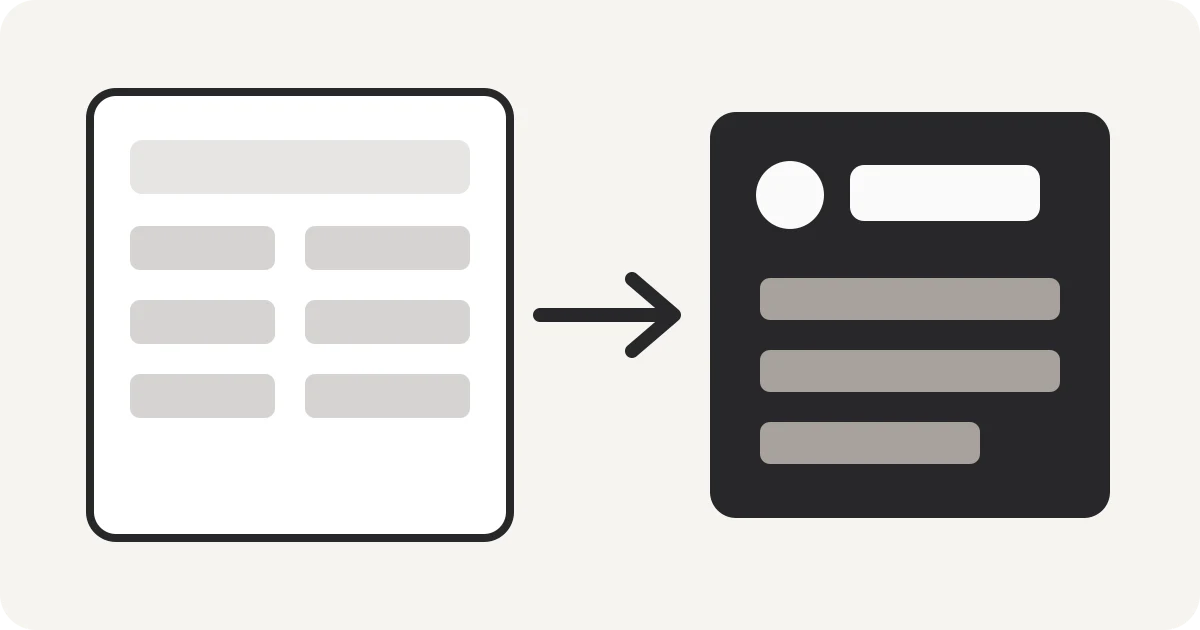
WooCommerce can import products from CSV, but a valid CSV is not enough when source column names do not match the fields the importer expects. Prepare the destination schema first, then review variation relationships before upload.
Start from WooCommerce native fields
WooCommerce’s shipped sample includes fields such as ID, Type, SKU, Name, Published, Regular price, Sale price, Categories, Stock, Parent, and Attribute 1 name. Map your source meaning to those names rather than guessing from position.
Map common source headers deliberately
A supplier export might use regular_price, sale_price, stock_quantity, or attribute_1_name. Nablyx starts those as Regular price, Sale price, Stock, and Attribute 1 name, while leaving unfamiliar columns available for manual review.
Review variable products before import
For variations, check Type, SKU, Parent, stock, and attribute columns together. A correctly renamed price column cannot repair an incorrect parent SKU or missing variation attribute.
Nablyx performs this mapping locally in your browser up to 200 MB. It prepares the CSV; WooCommerce performs the final import.
Map product CSV for WooCommerceSee the transformation
Awkward source headers become import-ready columns.
Rename the columns you need while keeping every value under the correct header.
cust_idcustomer_idgiven_namefirst_namemailemail✓ Values stay with the right column
Need to do this now?
Map product CSV for WooCommerceRelated tools
Open the tool this guide is about, or explore a related one.
- CSV column mapper and renamerRename, reorder, and remove CSV columns before importing data into a CRM, store, database, or accounting system — without uploading your file.
- Validate CSV files online freeScan a CSV once for structural, encoding, header, delimiter, and whitespace problems without changing the file.
- Clean and fix CSV files — no uploadRepair common CSV problems including wrong delimiters, uneven rows, empty lines, whitespace, BOM markers, and duplicate headers.