
How to Compare Two JSON Files (and Find What Really Changed)
Compare two JSON files and see added, removed, or changed values without treating spacing or object key order as changes. Files stay on your device.
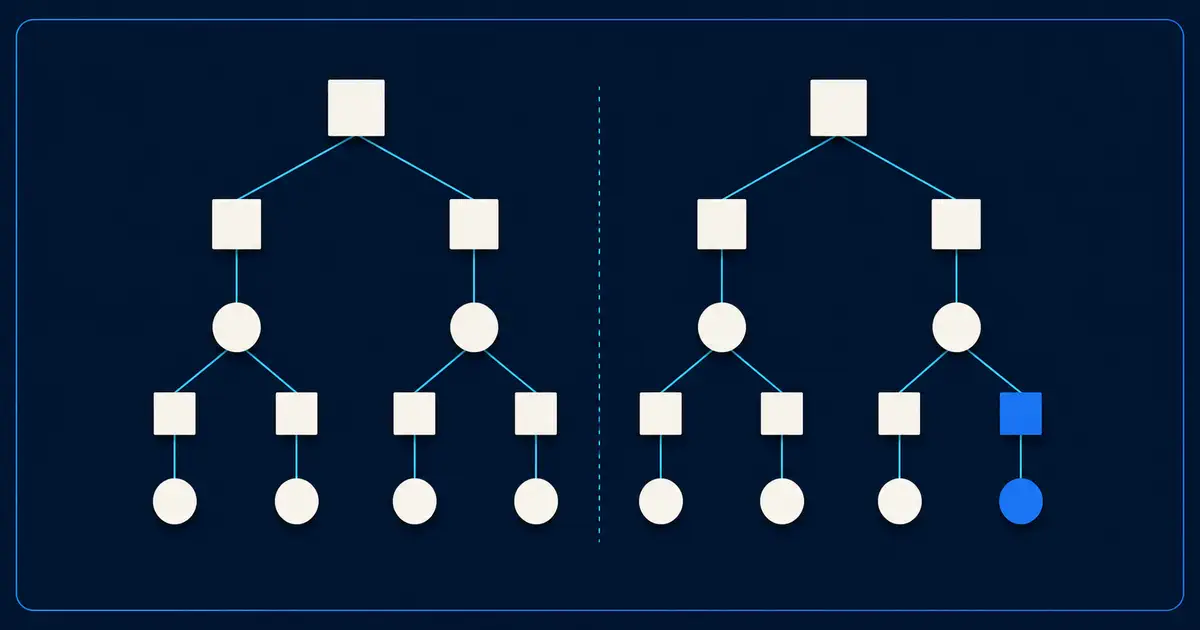
Compare two JSON files by structure to see what was added, removed, changed, or changed type. Both files are processed in your browser and never uploaded, up to 50 MB each. That limit was checked three times on the hardest kind of file, each run in a fresh browser using the tool exactly as you would.
The current per-file limit shown on the tool page comes from the difficult shape, not an average file. Two files with data nested many levels deep passed three separate fresh-browser runs at 50 MiB each. One recorded run used about 1.18 GiB of extra memory. At 100 MiB per file, the same kind of input reached about 2.33 GiB and crossed the tool's 2 GiB safety ceiling, so that size was rejected even though the comparison result was still correct. More ordinary JSON reached 200 MiB per file in testing. The published limit therefore follows the hardest tested shape, not just the easy one.
Two JSON files can look very different even when most of the data is the same. One may use extra spaces. Another may list object fields in a different order. A normal text comparison can make those harmless differences look important.
The JSON comparison tool focuses on the data instead. It helps you see which values were added, removed, or changed.
When this comparison is useful
Use it when you have two versions of the same kind of JSON data and want to understand the real changes.
Common examples are an old and new settings file, two API response samples, data before and after a migration, or two exports that should contain the same records.
If you only care about spaces, line breaks, or the exact text layout, use a normal text comparison instead.
// document-a.json
{
  "user": {
    "id": 42,
    "email": "ada@example.com",
    "role": "admin"
  },
  "audit": { "created": "2026-01-12", "updated": "2026-07-04" }
}

// document-b.json
{ "audit": { "updated": "2026-08-22", "created": "2026-01-12" },
  "user": { "email": "ada@example.com", "id": 42, "role": "editor" } }
These two documents produce a small, focused diff: user.role changed, audit.updated changed. Reordered object keys and reformatted whitespace do not appear at all.
How to compare arrays
The single biggest choice is how the tool pairs elements inside a JSON array, because the answer can be "different element" or "same element changed" depending on the pairing.
- 01
Use position for ordered lists
The first item is compared with the first, the second with the second, and so on. This works well when position has meaning.
- 02
Use a stable field when items can move
Choose a field such as id, sku, or email when the same records may appear in a different order.
- 03
Pick a field that is present
If some items do not contain the field you chose, review those results carefully.
- 04
Pick a field that is unique
If two items share the same value, the tool cannot know which copy you meant without extra context.
For the clearest result, choose a field that reliably identifies one item, such as an account ID or product SKU.
What the report actually contains
The output is a single JSON document, json-diff-report.json, with four sections worth knowing.
| Section | What it tells you | What can still go wrong |
|---|---|---|
| Summary | Whether the two files contain the same data | Spacing and object key order are ignored. |
| Totals | How many values were added, removed, changed, or changed type | Use this to see the size of the change quickly. |
| Changes | The values that differ between the two files | Review the important records before acting on the result. |
| Large results | A shorter on-screen view when there are many changes | Download the result if you need to review more. |
If there are many changes, start with the summary and review the parts you expected to change first.
Reading the finding kinds
The result groups differences into a few simple types.
| Kind | When it appears | Example path and preview |
|---|---|---|
| Added | A value exists only in the newer file | A new email field appears |
| Removed | A value exists only in the older file | An old legacy field disappears |
| Changed | The same field has a different value | admin becomes editor |
| Different type | The same field changed from one kind of value to another | 42 becomes text instead of a number |
| Array item needs review | The chosen matching field did not clearly identify an item | Check that the chosen id-like field is present and unique |
For example, if a number becomes text, the result shows that type change directly instead of turning it into a long list of smaller differences.
A file that is not valid JSON fails with a parse error before any comparison runs. The tool does not attempt to repair or coerce invalid JSON. Validate the files with the parser you trust, fix the syntax, and run the comparison again.
Verifying a diff before you act on it
Treat the report as evidence, not a verdict, especially when one of the inputs is auto-generated.
Confirm identical: true means what you think. Reordered object keys and whitespace do not count. If the only changes you expected were reformatting, an identical report confirms it; if you wanted to see formatting drift, run a text diff instead.
Check any array items that could not be matched clearly. If that happens often, choose a better field such as a unique ID and run the comparison again.
Spot-check a few important changes. Confirm that the old and new values match the source files, especially before using the result for a migration or release decision.
Compare the totals to the change you expected. A schema-rollout migration that only adds two new fields and removes one should report one removed, two added, and zero changed. Anything beyond that needs an explanation before you ship the change.
When the result is too large to read
The preview is capped for display, but the totals are not. Two patterns work at scale:
- Start with the area you expected to change. Review the most important records first instead of trying to read everything at once.
- Download the comparison result. Keep it with your change notes if you need to review the differences later.
See the transformation
Two documents become a path-by-path findings ledger.
See where values or data types changed without being distracted by harmless key-order differences.
{"id":42,"price":49,"active":true}{"active":"true","price":44,"id":42}Need to do this now?
Compare your JSON filesRelated tools
Open the tool this guide is about, or explore a related one.