
Import WooCommerce Products from CSV After Column Mapping
Prepare a WooCommerce-ready CSV, review variation-sensitive columns, and then hand the mapped file to the native importer.
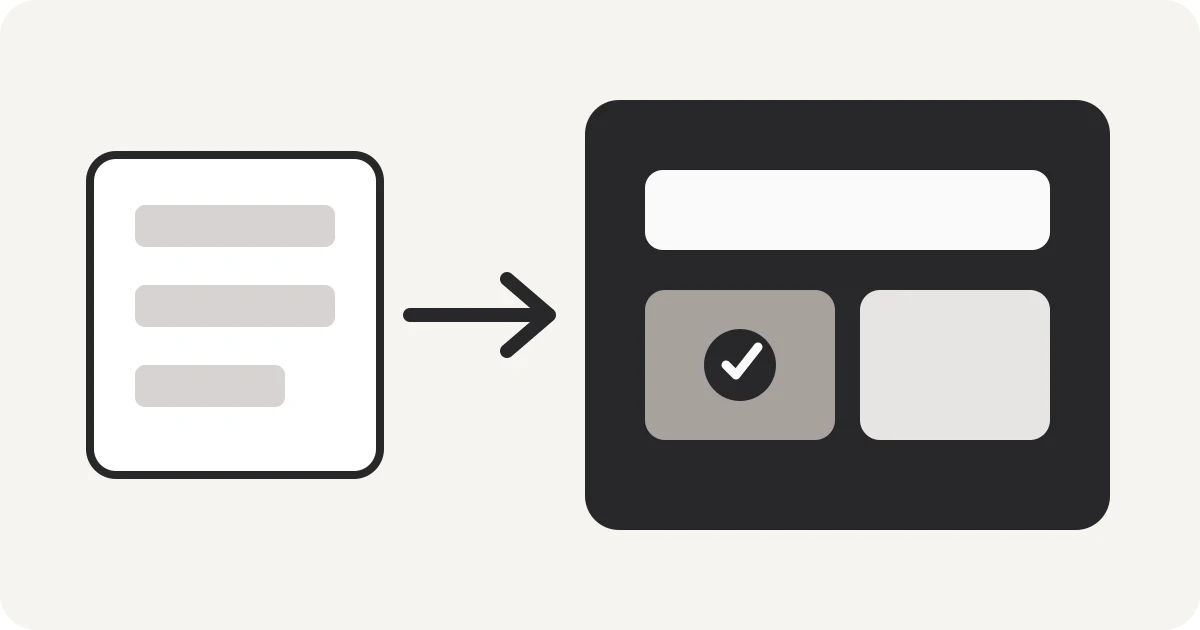
Treat the workflow as two separate steps: prepare the CSV schema, then run the WooCommerce import. Keeping those steps separate makes mapping mistakes visible before the store import begins.
1. Load and map the source CSV
Open the supplier or legacy export, review the suggested WooCommerce field names, and keep only the columns you intend to import. Unknown columns remain editable instead of being silently discarded.
2. Inspect variation-sensitive fields
Before download, verify Type, SKU, Parent, stock, and attribute columns. These relationships are where variable-product imports most often become confusing when data comes from another system.
3. Download and use WooCommerce’s importer
Download the mapped file, open WooCommerce’s native product importer, review its mapping screen, and import only after the destination fields match your intent. Nablyx does not connect to WordPress or upload products directly.
The preprocessing step stays in your browser up to 200 MB.
Map product CSV for WooCommerceSee the transformation
Awkward source headers become import-ready columns.
Rename the columns you need while keeping every value under the correct header.
cust_idcustomer_idgiven_namefirst_namemailemail✓ Values stay with the right column
Need to do this now?
Map product CSV for WooCommerceRelated tools
Open the tool this guide is about, or explore a related one.
- CSV column mapper and renamerRename, reorder, and remove CSV columns before importing data into a CRM, store, database, or accounting system — without uploading your file.
- Validate CSV files online freeScan a CSV once for structural, encoding, header, delimiter, and whitespace problems without changing the file.
- Clean and fix CSV files — no uploadRepair common CSV problems including wrong delimiters, uneven rows, empty lines, whitespace, BOM markers, and duplicate headers.